
Tax rounds once
Never per line. The tablet and the server round the same way, so the two never differ by a cent.
Take the order, take the card, print the receipt, close the day. A POS carrying only what a shop actually does.

A new member of staff uses it on their first shift. There is one screen, what is used most is within reach, and wherever something could be confusing, the reason it works that way is written down.
Putting the best sellers at the front is not alphabetical. Hold a tile for five seconds and arranging mode opens; drag to move it.
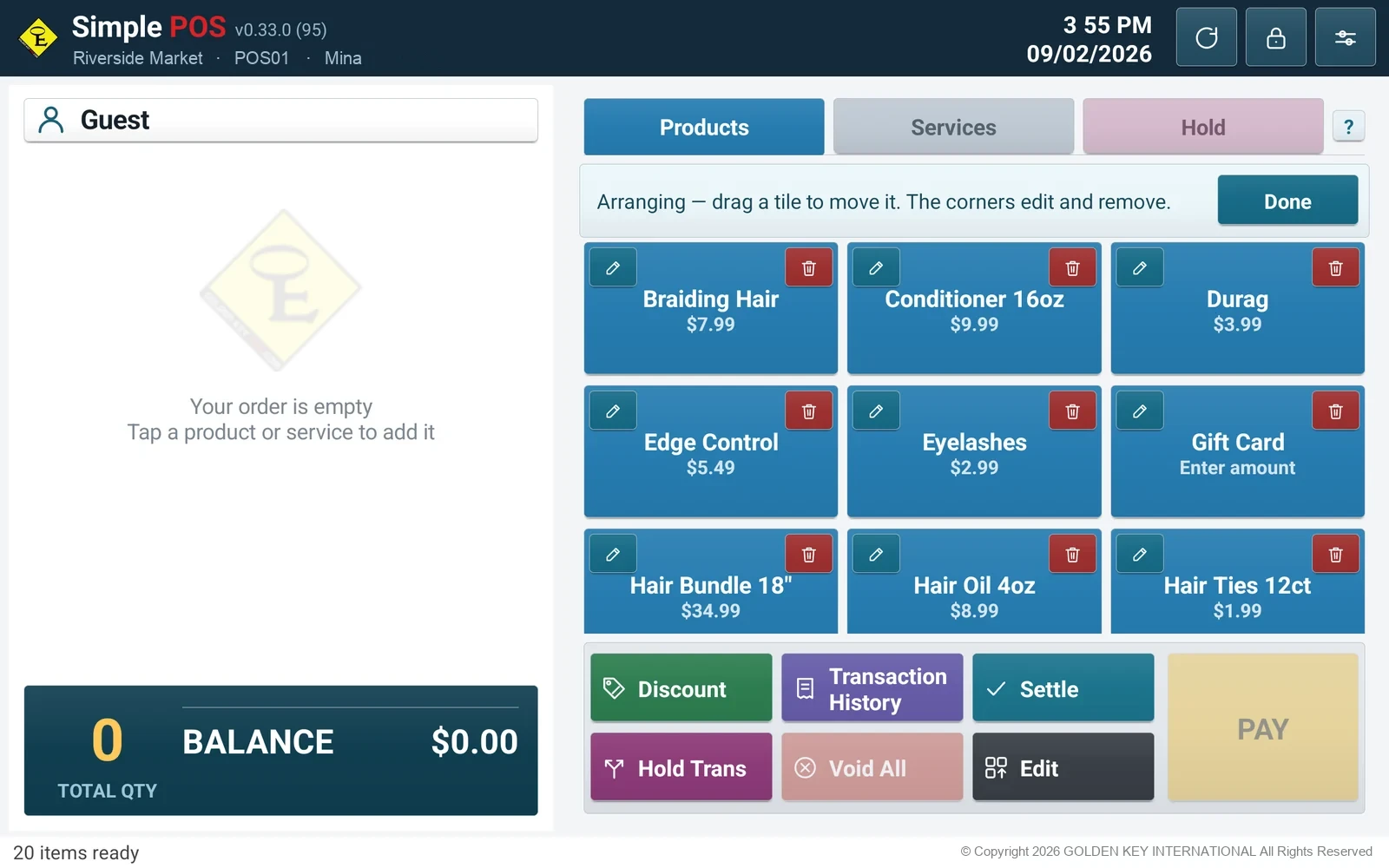
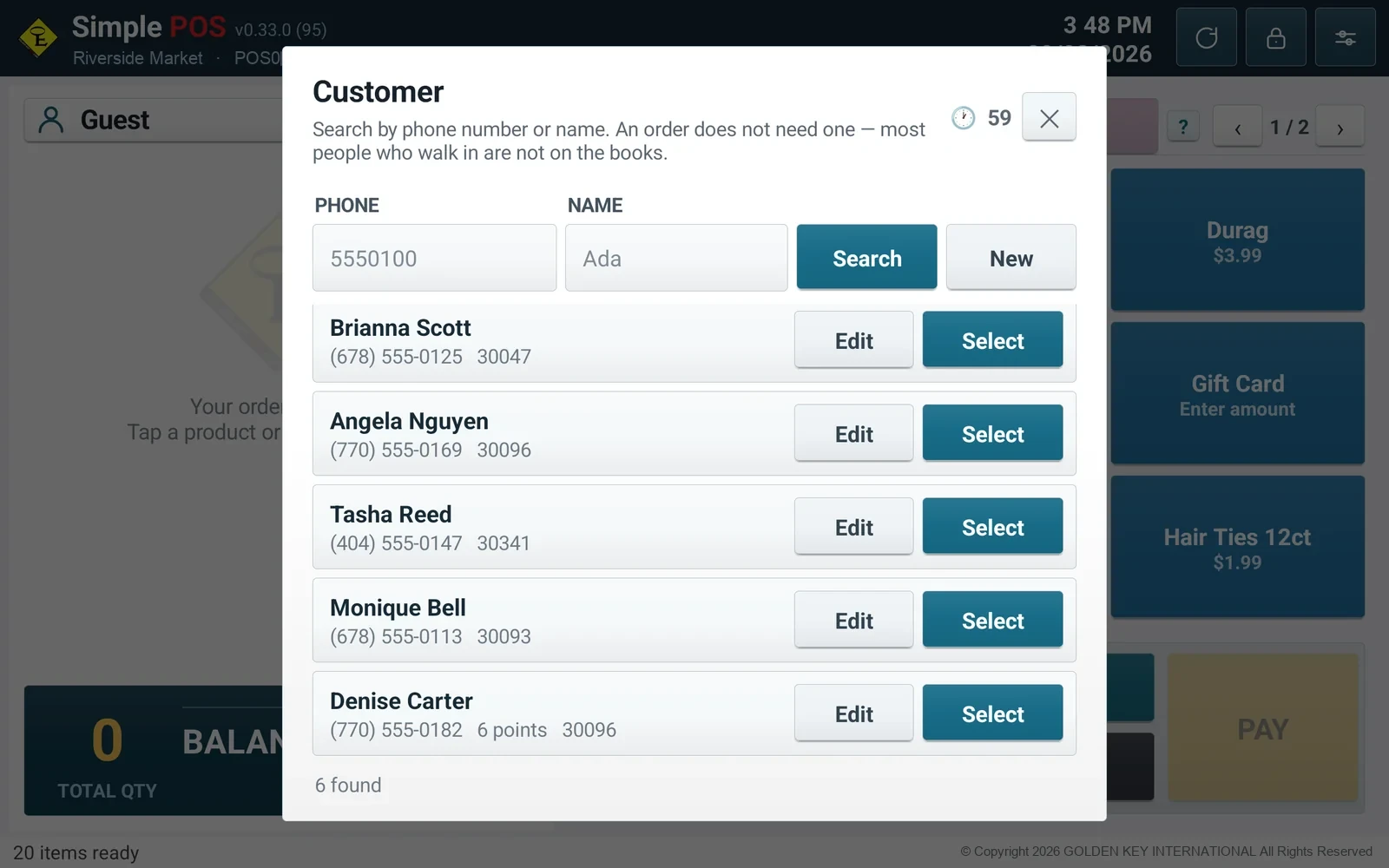
No further buttons were added. Swipe an order line right to discount it, left to take it off.
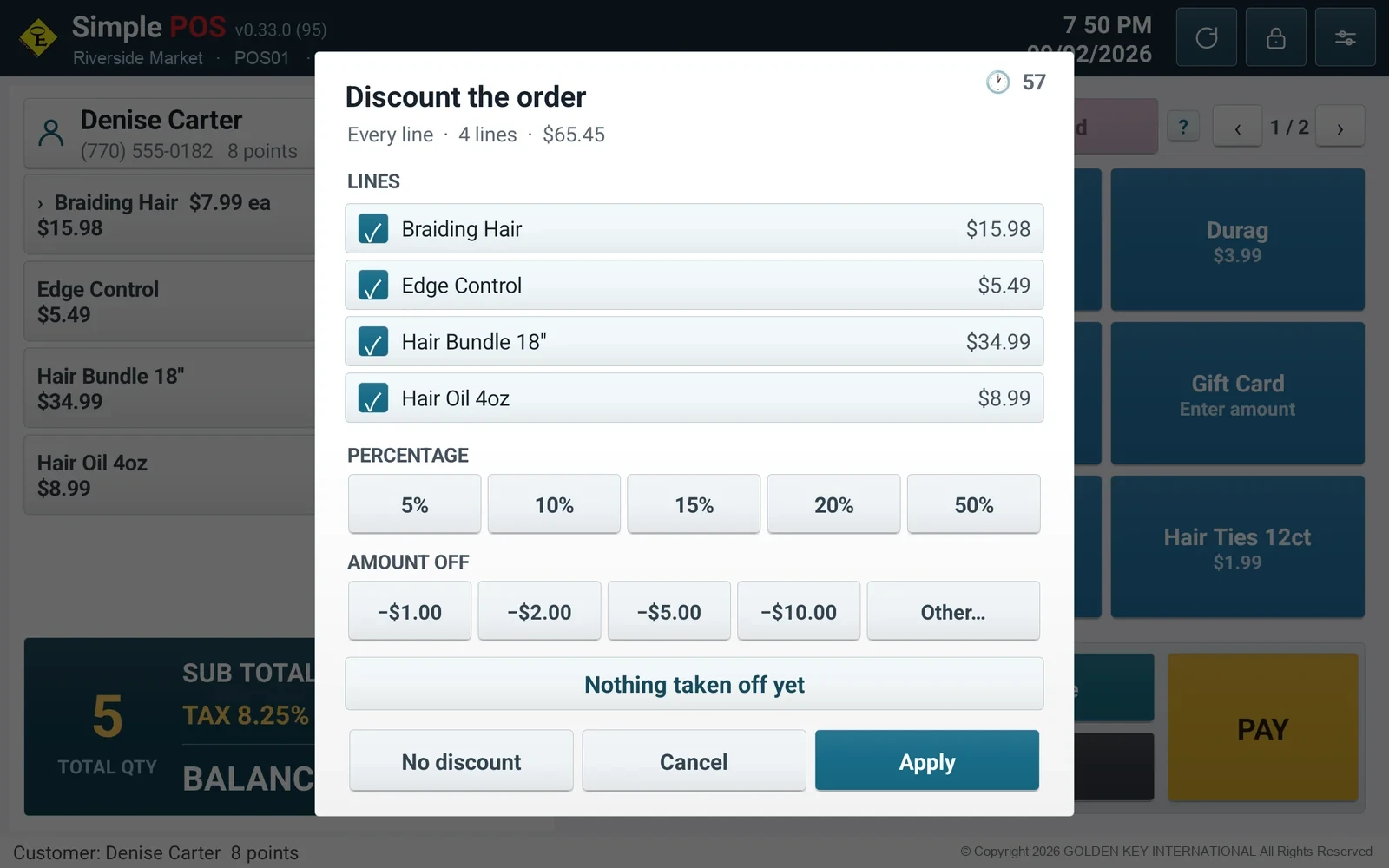
It is what a cashier can ask for across a counter and what somebody can recite without carrying anything. A name works too.
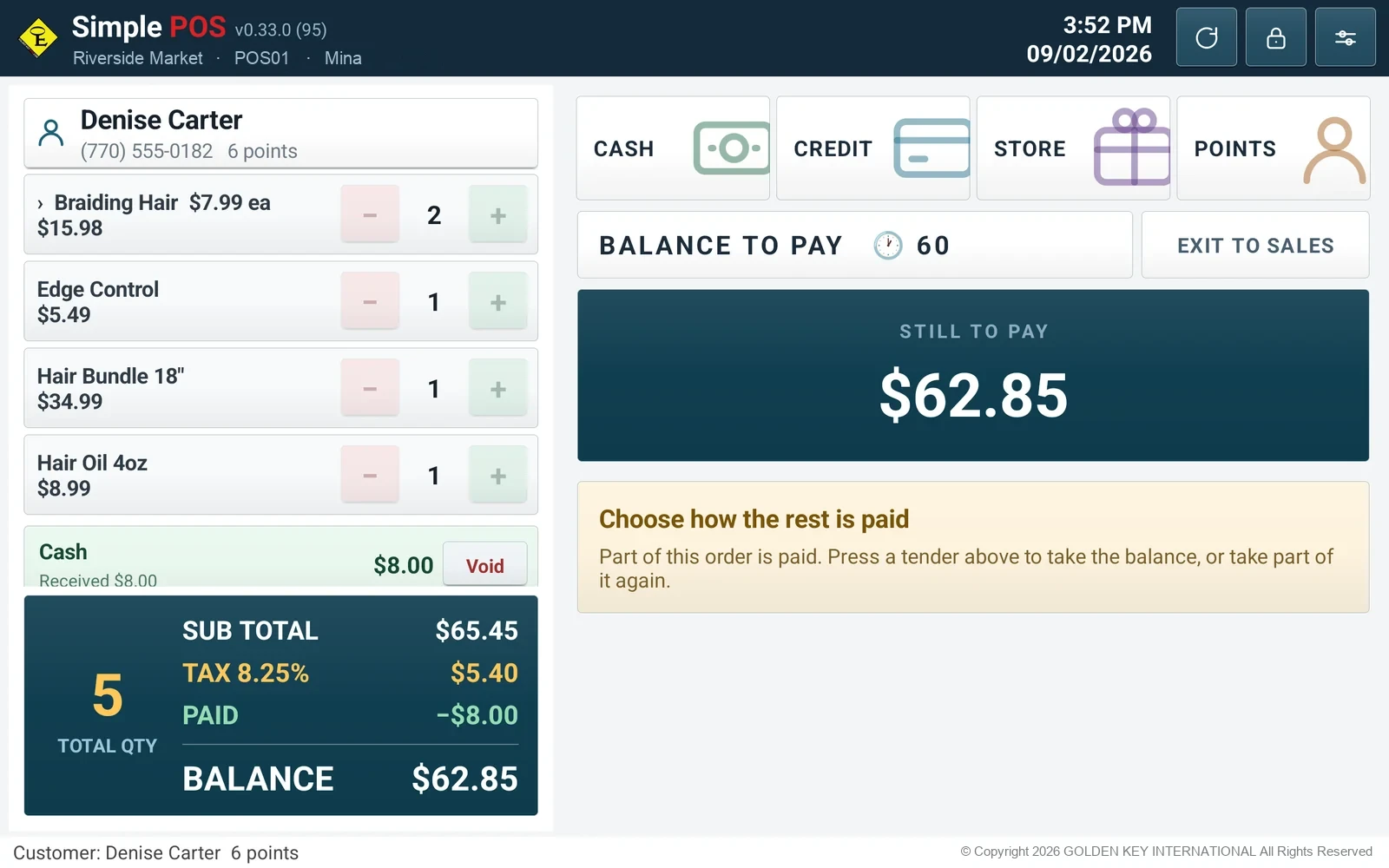
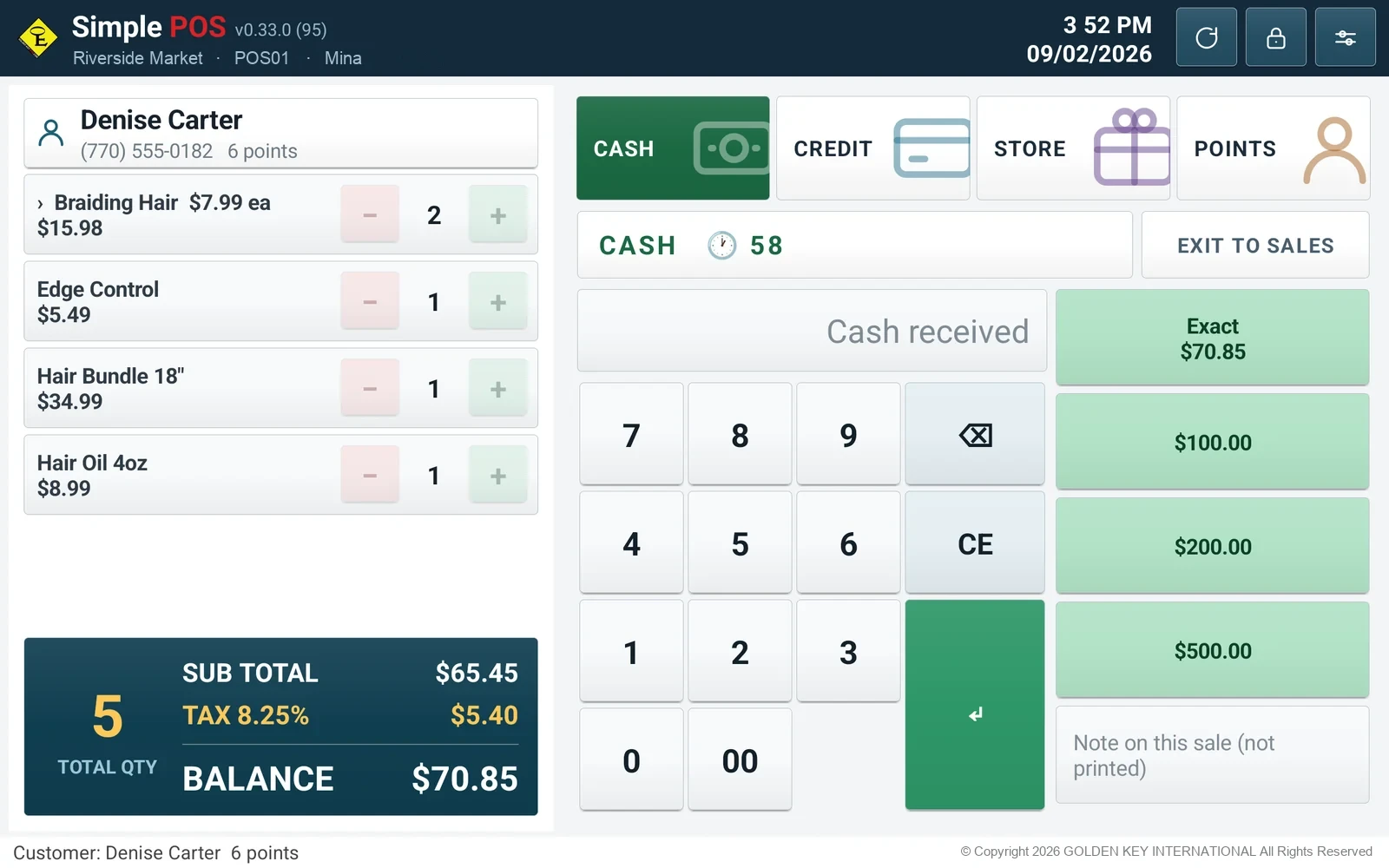
The payment screen does not cover the POS. The right-hand side, where the products were, becomes the payment panel and the order stays on the left — because “what was that, and how much?” is asked at exactly the moment money is being taken.
Pick a tender and it is collected right there. The amount pad, the request to the terminal and the card details all finish inside one screen.
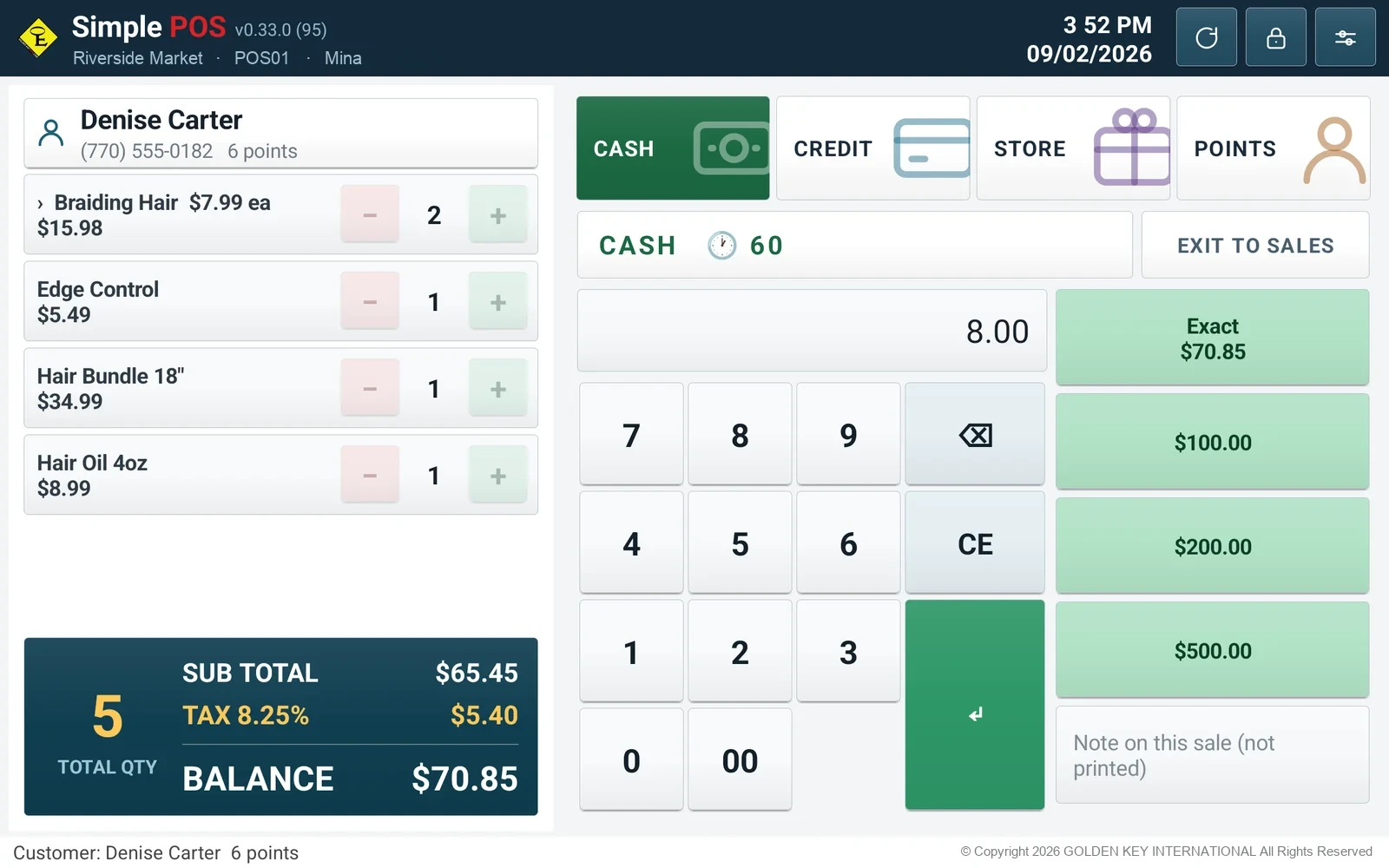
There is no Split button. Splitting a bill is not something a cashier decides in advance — it is something they find out halfway through — so any tender can take part of the order.
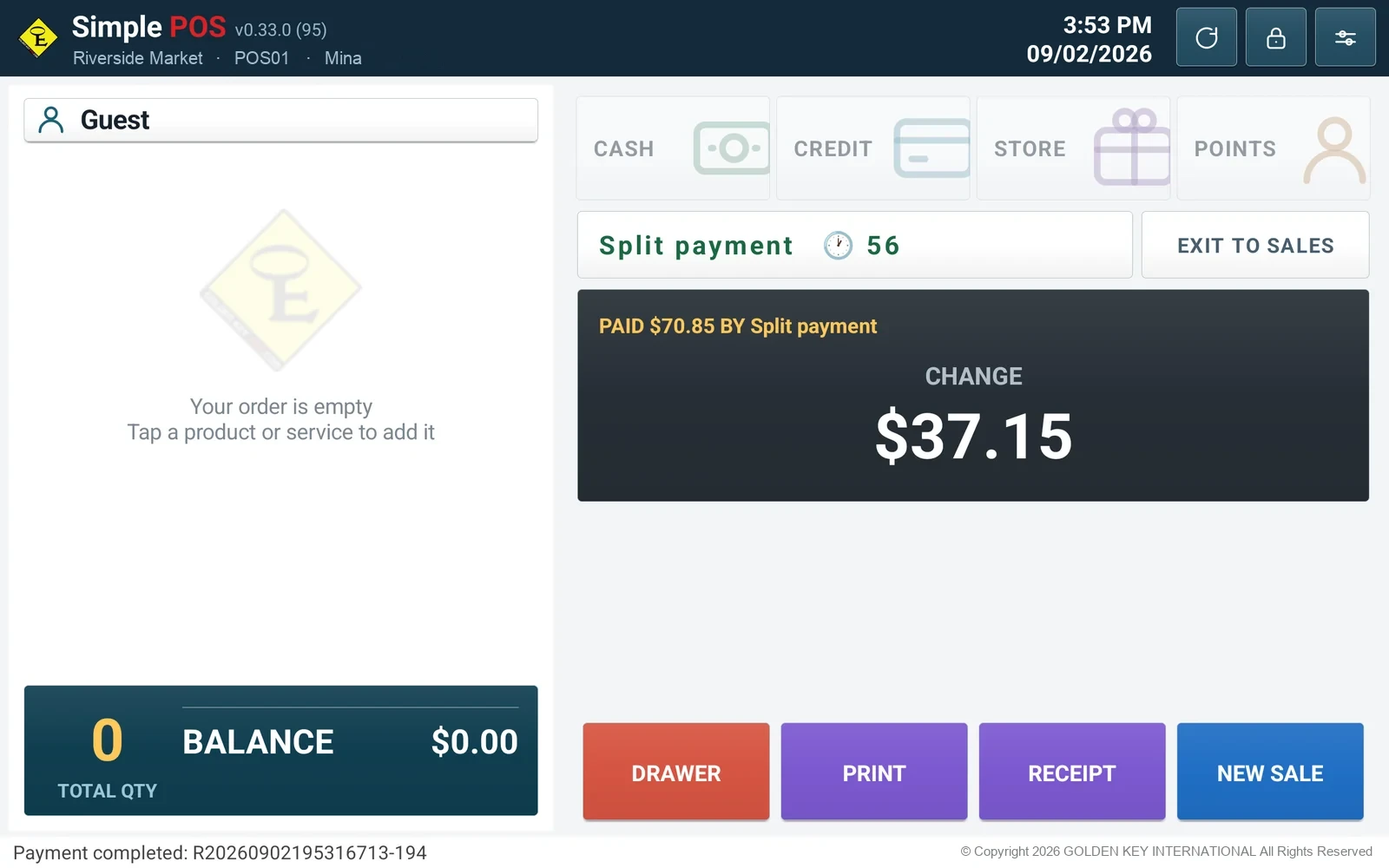
No receipt popup appears. It finishes where it started, and the one number that has to be read before the customer leaves is the largest on the screen.
What the tablet sends is not taken on trust. It says what is being sold and how many; the price comes out of the catalogue on the server, is recalculated there and recorded there. Lose the tablet, or let somebody tamper with it, and the takings are still the server's figures.
Never per line. The tablet and the server round the same way, so the two never differ by a cent.
Before the batch settles nothing has moved, so it is voided; afterwards only a refund is possible. The screen keeps the rule so nobody has to remember it.
Some in cash, the rest on a card — or on two cards. It finishes itself when the balance reaches zero.
One of the three bundles comes back, so one bundle is returned. Returned a piece at a time, the parts still come to exactly what was taken.
Scan a product barcode and it lands in the order; scan the barcode on a receipt and that receipt opens.
The name and the price at the moment of sale are stored with it. Change a price later and last year's receipt still says what was charged.
Each shop keeps its own catalogue and its own takings. Two POS terminals in the same shop share the catalogue and the card balances.
With no server to reach, the POS records the sale itself and carries on. It uploads when the line is back, and nothing is banked twice.
One number a cashier can ask for finds the customer. Naming one is optional, and most people who walk in are not on the books. Points build up and spend like a tender.
A postal code asked at payment is counted by area. A known customer is not asked twice, and walk-ins are counted too — they are most of it.
Somebody steps away, so the order is named and parked. It shows who put it down, so it survives a change of shift.
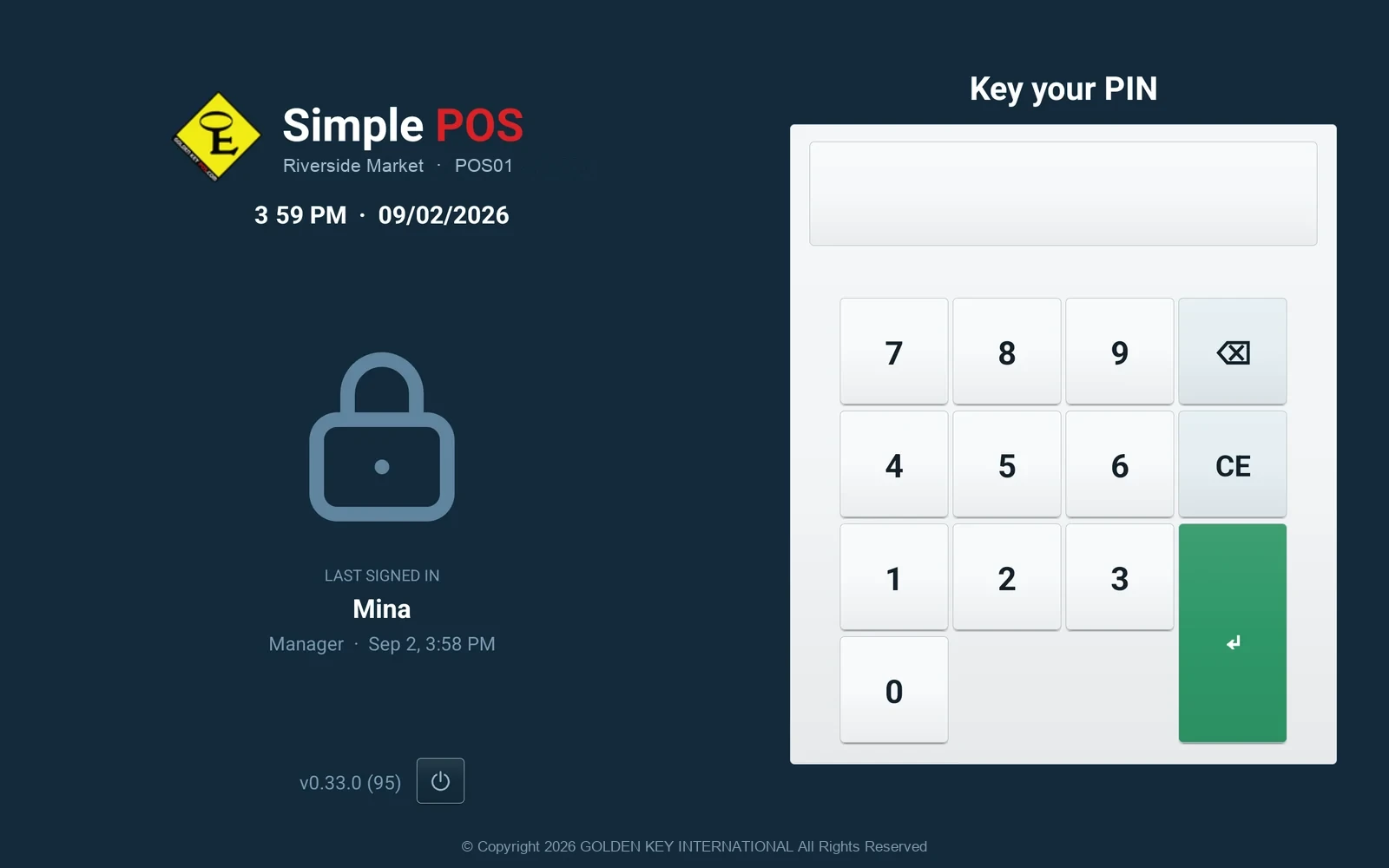
Staff sign in with four digits and the POS signs them in the moment the fourth lands. It is checked on the tablet, so a shop whose line is down can still open — and a wrong PIN belongs to nobody, so a colleague fumbling theirs never locks anyone out.
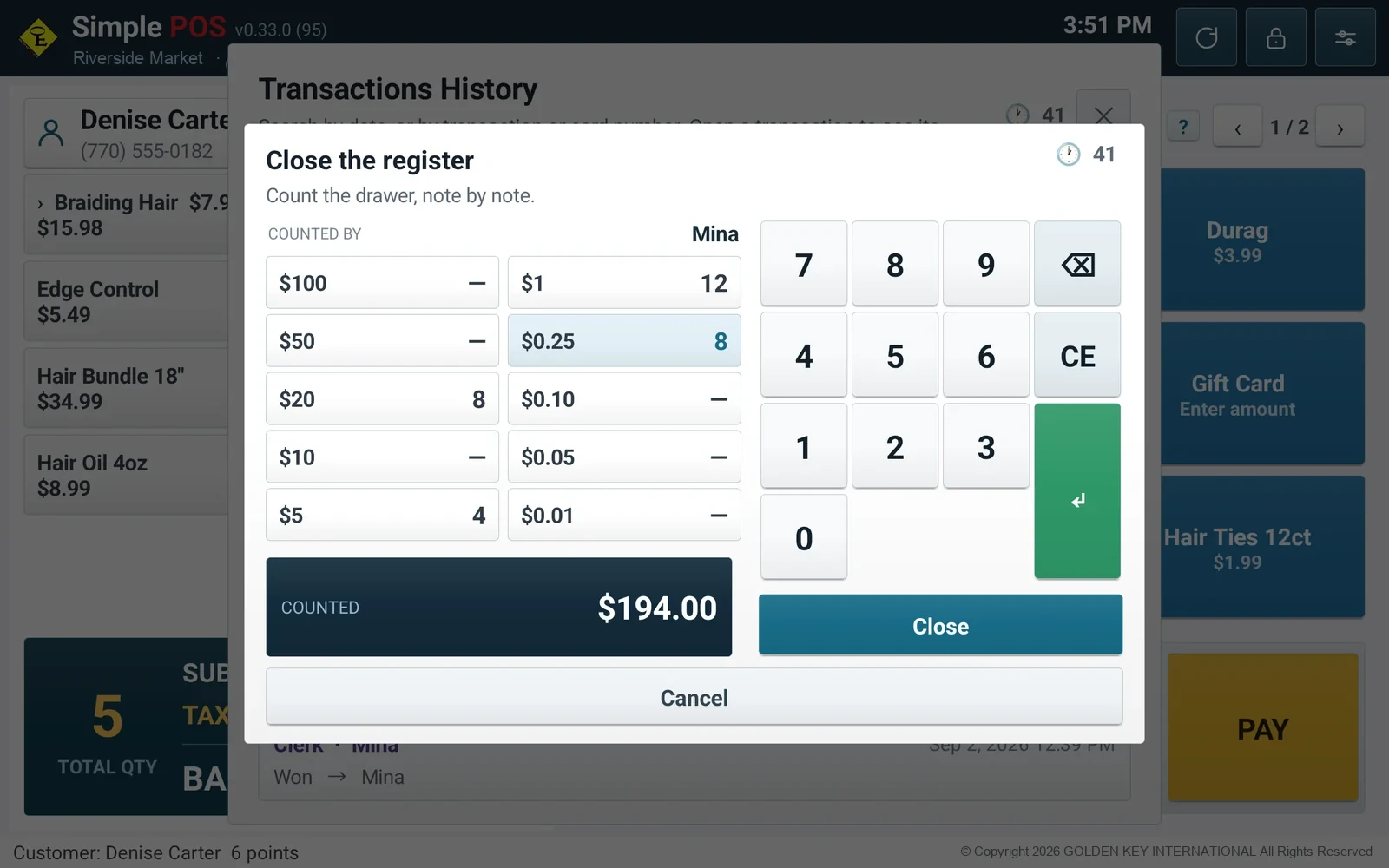
A total is the one thing nobody has while looking into a drawer. Open with a float, count each denomination at the end, and the POS says what it expected and whether the till is over or short — in words, because a bare minus is a sign somebody has to notice.
Where the smallest coin is gone, the cash total rounds to the nearest five cents. Only the cash moves — the order, the tax and a card, store card or points payment all still settle to the cent — and what it moved is recorded and printed.
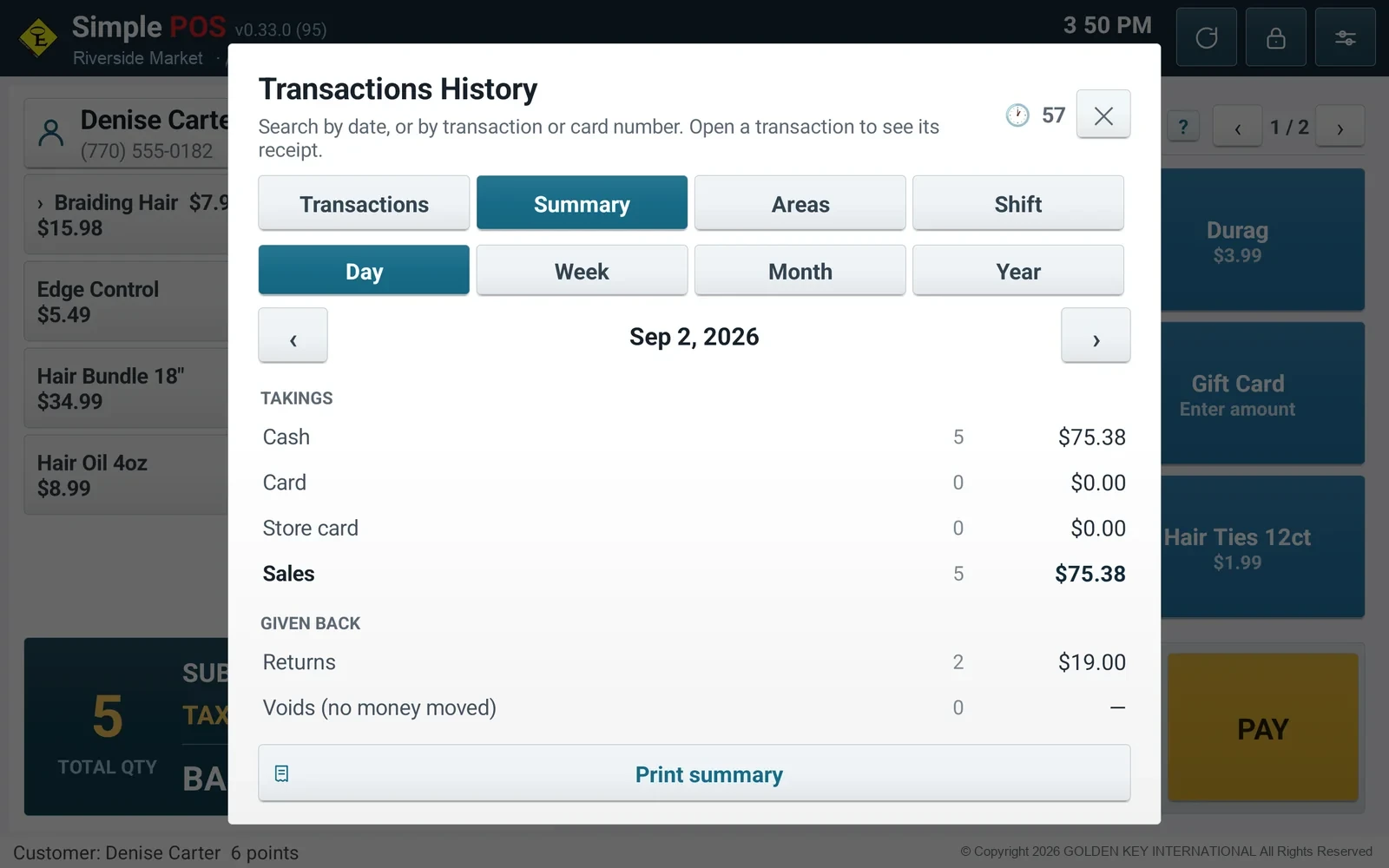
Cash, card and store card apart, with returns and voids on their own lines. Step through by day, week, month or year, and print the same figures.
Four digits and the POS knows who is at the counter. The name follows the sale onto the receipt, the held order and the day's log, so a question about a transaction has somebody to ask.
A total is the one thing nobody has while looking into a drawer. Count each denomination and the POS says what it expected and whether the till is over or short.
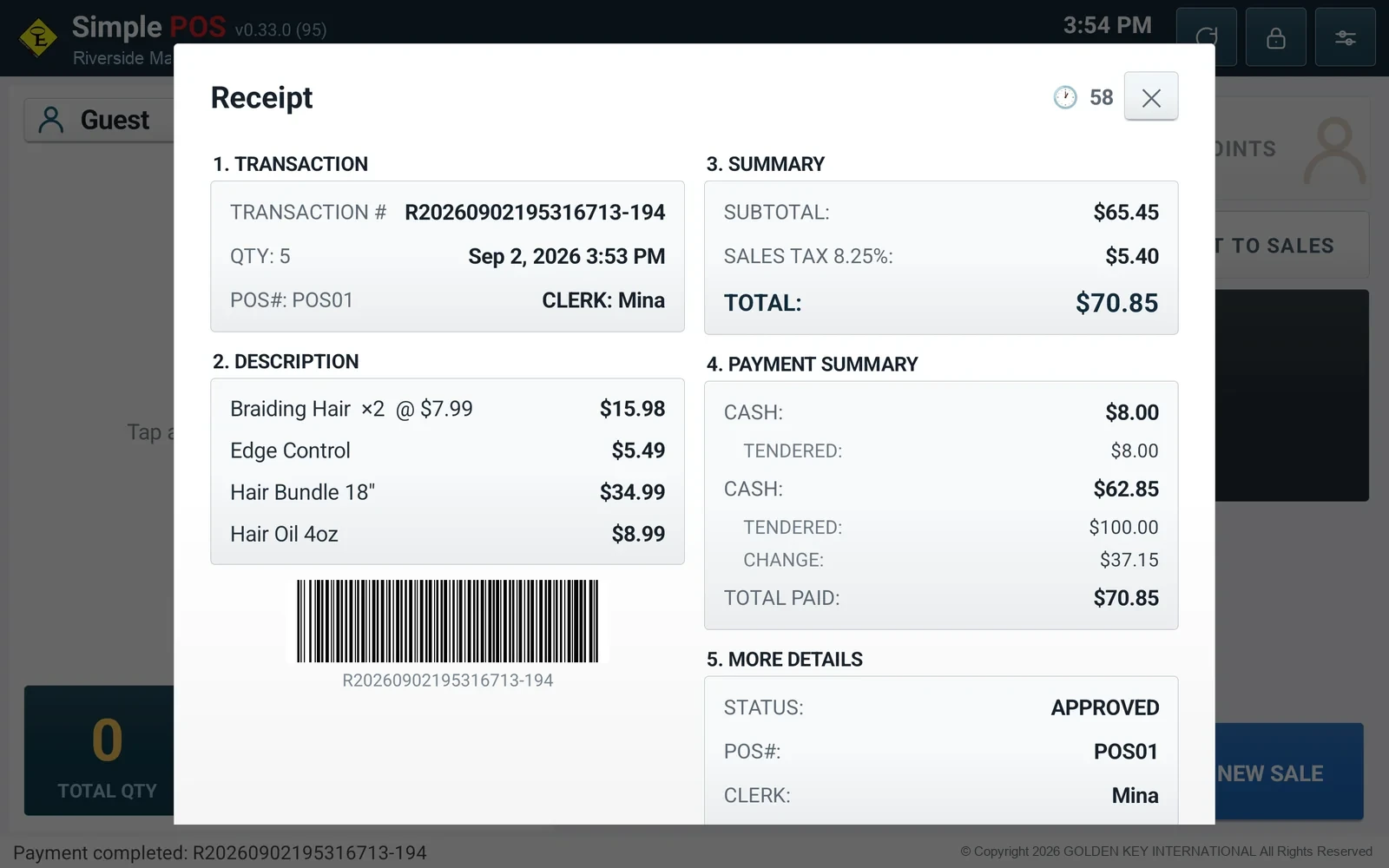
What the customer was shown and what comes out of the printer are the same sections in the same order. A reprint is stamped as one and does not open the drawer.
A changed phone number or a risen tax rate is no reason to go and find a laptop. Correct it in the POS's Settings and every other POS in that shop, and the admin site, show the same thing.
The shop's details belong to the shop, not to the device. Correct them on one POS and the rest use the same values.
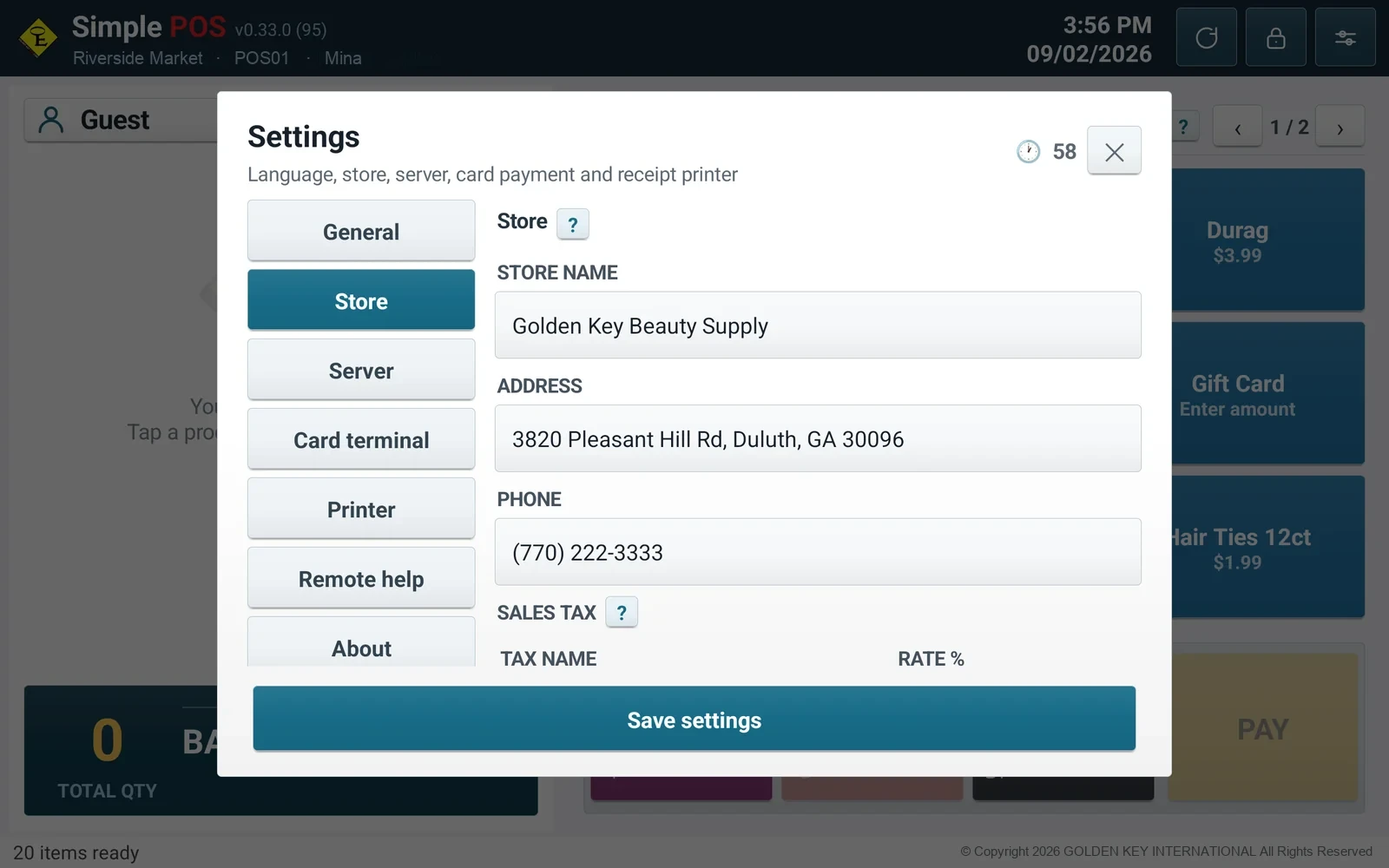
The shop's name, address and phone print themselves at the top. The header is what the shop adds underneath them; the footer is the closing line at the bottom.
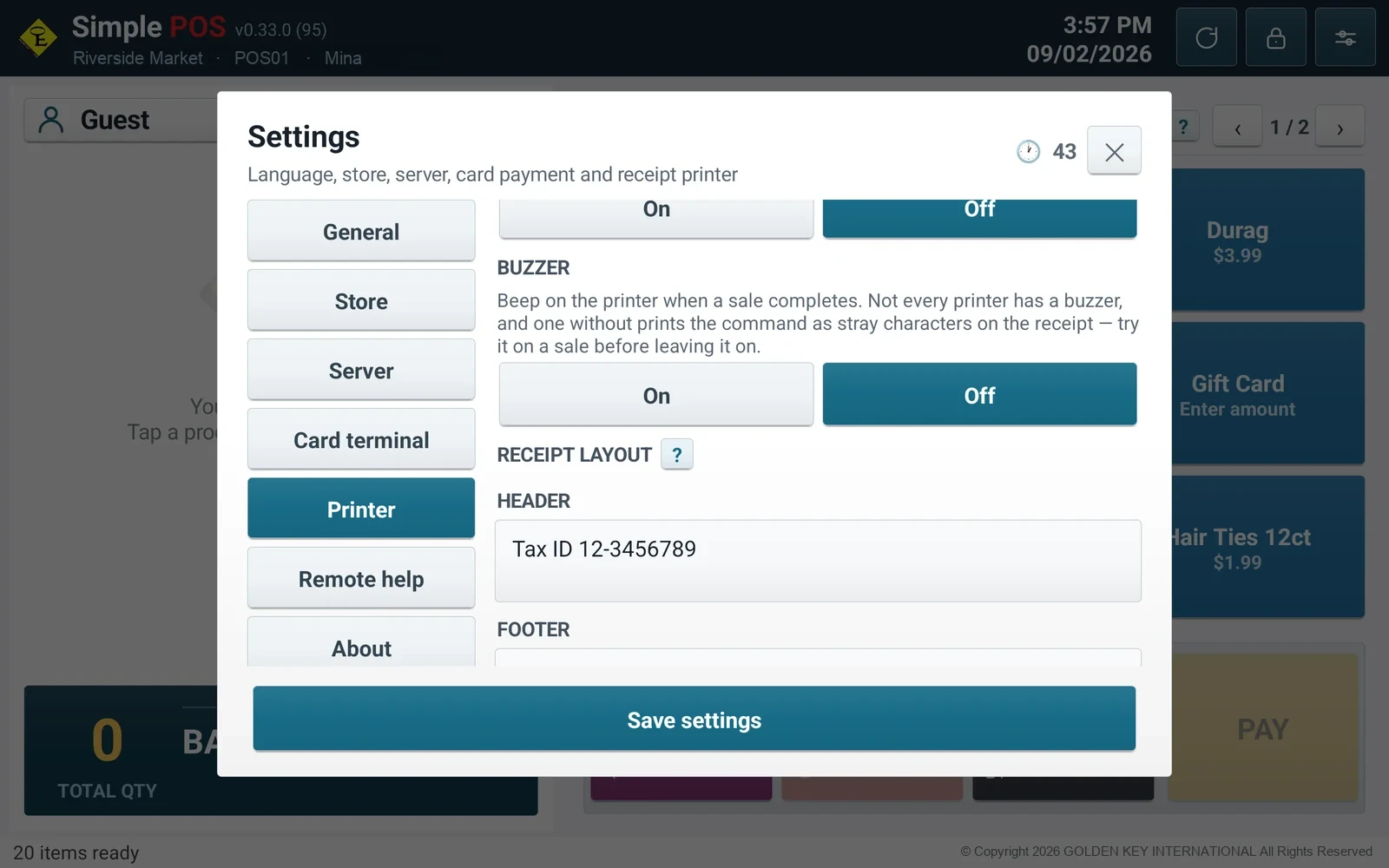
A counter with no card terminal switches cards off. The payment panel divides its width into four, so one tender nobody uses is width taken from the other three.
Scan the code with the tablet and the app downloads. Enter the address and the key and it sells that day.
A new build is picked up when the POS next launches. Nobody has to walk round the shops installing it.
One can be shut off without touching the others, and a lost tablet means reissuing one key rather than all of them.
English, Korean, Spanish or French, and dollars, euros or pesos. The receipt alone prints in English whatever the POS is set to — the person taking it away is not the person who chose the language.
“If the card terminal does not answer, the payment fails. No way to key an approval by hand was ever built.”
Chosen so that a payment nobody approved can never be recorded as a sale.Ringing up, taking the money, printing the paper and closing the day — all on the tablet, with an admin site behind it for whoever is not standing at the counter.
| Sells with no connection | A dropped line does not stop the counter. Sales queue on the tablet and upload themselves the moment the server answers; the banner says how many are waiting. |
|---|---|
| Terminals, not typed numbers | Valor and PAX over the shop network. There is no way to key an approval by hand, so a payment nobody approved can never be recorded as a sale. |
| One bill, several tenders | Cash, card, store card and points in any combination. Every part is collected before anything is recorded, and returns go back per tender. |
| The paper matches the screen | The printed receipt is the same five sections the tablet shows, over Bluetooth, USB or the network. The drawer opens on cash sales only. |
| Regulars by phone number | One number a cashier can ask for across the counter. Points earn on the discounted subtotal before tax, spend like any other tender, and come back when a sale does. |
| The day, counted properly | Takings by tender, returns and voids on their own lines, card batches split credit and debit, trade by postal code. Counted in the database, not summed from the last hundred rows. |
| One key per POS | Every POS carries its own key, bound to one installation. Shut one off without touching the others; a key that turns up on a second tablet is flagged rather than passing quietly. |
| More than one shop | Each shop keeps its own catalogue, cards, customers and takings. The boundary is enforced on every read and every write, not by each query remembering. |
| It updates itself | A published build is offered on the next launch, downloaded and hash-checked before Android asks its one confirmation. Never mid-sale. |
| Cash without the penny | Where the smallest coin is going, a cash total is rounded to the nearest five cents — the rule the US Treasury recommends, or always up or always down if a shop needs it. Only cash: card, store card and points still settle to the cent. What it moved is on the receipt. |
| Every shift has a name on it | Staff sign in with a four-digit PIN, and the POS asks for it before it will sell. The name goes on the receipt, on the held order and in the day's log — so a question about a transaction has somebody to ask. Off until a shop registers its own people. |
| The drawer is counted, not guessed | Open with a float, count it note by note at the end of the shift, and the POS says what it expected and whether the till is over or short. It counts every cash tender that POS rang, so the figure is the drawer's own. |
| Tablet | Android 8.0 or newer, landscape. 10 inches or larger recommended |
|---|---|
| Card terminal | Valor or PAX, on the network. Sale, void, refund and batch close |
| Receipt printer | ESC/POS. Network (IP), Bluetooth or USB |
| Cash drawer | Wired to the printer's RJ11/RJ12 port |
The terminal and the printer only have to be on the shop's network. The tablet connects to them directly, so there is no box in the middle.